YouTube Shorts Transcript Generator & Subtitle Downloader
Paste a link to a YouTube Short or any other video and get its transcript from the captions it already has — the creator’s own or YouTube’s automatic ones. Read it here, copy the text with or without timestamps, or download it as TXT, SRT or VTT.
How to Get the Transcript of a YouTube Short
-
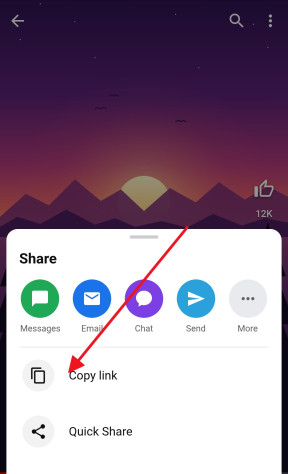
Copy the link
In the YouTube app, tap Share under the Short or video and choose Copy link. Any YouTube link works: a Short, a normal video or a live stream that has ended.
-
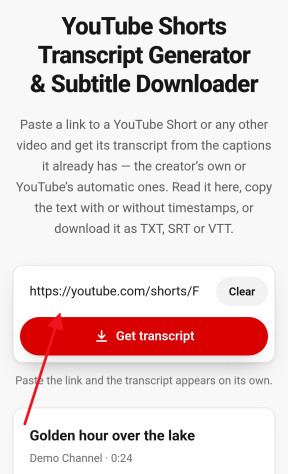
Paste it above
Paste the link into the field at the top of this page. The transcript is taken from the video’s captions and appears in a few seconds.
-
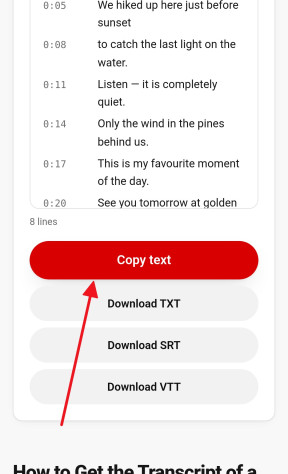
Copy or download it
Copy the text, or download it as a TXT file or as SRT or VTT subtitles. Timestamps switches the times on or off in the text and the TXT file, and the Captions menu picks another language when the video has more than one.


Download Subtitles as TXT, SRT or VTT
The same captions come as three files, for three different jobs:
- TXT — plain text, for reading, quoting or pasting into a document or an AI chat. With Timestamps on, every line starts with the moment it is said, like [0:18].
- SRT — numbered subtitles with a start and an end time each, the file video editors and players expect: Premiere Pro, DaVinci Resolve, CapCut, VLC, and YouTube Studio itself.
- VTT — WebVTT, the subtitle format of the web, for HTML5 video players and most online platforms.
SRT and VTT always keep their start and end times, whatever Timestamps is set to: the timing is what makes them subtitles, and a player or an editor will not open one without it. For the words alone, take the TXT.
Every file is UTF-8 text, so accents, emoji and non-Latin scripts come through intact.
Creator and Auto-Generated Captions in Any Language
A video can carry two kinds of captions. Those written by the creator — often in several languages — are listed first, and are as accurate as whoever wrote them. Auto-generated captions are YouTube’s own speech recognition in the language spoken; they are marked as such, can miss punctuation, and now and then get a name or a slang word wrong.
When a video has more than one track, pick it in the Captions menu above the text and the transcript switches in place. Machine translations of the automatic track are left out on purpose: a translation of a guess is rarely worth reading.
Works for Full-Length YouTube Videos Too
Unlike the Shorts downloader, the transcript generator takes any YouTube video, however long: a lecture, a podcast episode or a two-hour stream that has finished. Only the caption file is fetched, never the video, so a long transcript is ready as quickly as a short one. Paste a youtube.com/watch?v=… or youtu.be/… link the same way as a Short.
What to Do with a Transcript
- Quote a Short word for word in an article, a post or a school paper
- Turn a talk into notes, or paste it into an AI assistant for a summary
- Translate it, or follow along in a language you are learning
- Reuse your own Shorts: subtitles for a re-upload, a caption for another platform, a blog post from a video
- Find the moment a word is said in a long video — the timestamps take you there
Why Some Shorts Have No Transcript
A transcript is only as good as the captions behind it. A Short that is only music, sound effects or text on screen has no speech for YouTube to recognise, and creators rarely caption one by hand — so there is nothing to fetch. Automatic captions also take a while to appear after an upload, do not exist for every language, and can be switched off by the creator. Private, deleted and age-restricted videos cannot be opened at all.
When there is nothing to show, this page says so rather than inventing text, and offers to save the video’s sound as an MP3 instead.
Frequently asked questions
Is the transcript generator free?
Yes. There is no account to make, no limit on the length of the video and nothing added to the files.
Does it work for long YouTube videos?
Yes. Any public video works, Short or not, however long it is — only its captions are fetched, never the video itself.
Why does it say there is no transcript?
The video has no captions: its creator did not add any, and YouTube made no automatic ones — usually because there is no speech in it, as in a Short that is only music.
Is the transcript made by AI?
Nothing is transcribed here. The text is the captions the video already has: written by its creator, or made by YouTube’s own speech recognition, which is marked auto-generated.
How accurate are auto-generated captions?
Good for clear speech, weaker with music, strong accents, people talking over each other and unusual names. Check names and numbers before you quote them.
Which languages can I get?
Every language the creator captioned the video in, plus the automatic track in the language spoken.
Can I download the transcript with timestamps?
Yes. Leave Timestamps on for a TXT file with the time at the start of every line, or download SRT or VTT, which always carry start and end times.
Does it work on iPhone and Android?
Yes, in any browser. Copy the text with one tap, or download a file — on an iPhone it is saved in the Files app.
More free YouTube tools
- Shorts Downloader Save a Short as an HD MP4 with sound, from 144p up to 4K. Open →
- Shorts to MP3 Take the sound of a Short as an MP3 up to 320 kbps or the original M4A. Open →
- Thumbnail Downloader Every thumbnail size of a video or a Short, up to 1280×720, and the vertical Shorts cover. Open →
- Ringtone Maker Cut the best seconds of a Short into an iPhone or Android ringtone. Open →
- Shorts to Normal Video Open any Short in the regular YouTube player, with a seek bar, speed and quality controls. Open →
- Shorts to GIF Cut any moment of a Short into an animated GIF, with no watermark. Open →